✓ No Sign-up ✓ No Ads ✓ HD Quality
FLIXFOX FIRESTICK
FlixFox for Firestick brings movies, web series, live TV and cricket to your Amazon Fire TV Stick in a few simple steps.
Download FlixFox Firestick (v2.1.3)Updated September 30, 2026App NameFlixFox
Versionv2.1.3
Size34.5 MB
Already have a Fire TV Stick plugged into your TV? Then you are just a few minutes away from watching movies, web series, anime and live cricket on FlixFox, with no sign-up and no ads in between. The app is only 34.5 MB, so it fits easily even on a Fire TV Stick Lite with limited storage.
Whether you use a Fire TV Stick Lite, Fire TV Stick 4K or Fire TV Cube, this guide covers everything from installing the app to setting it up and fixing common problems. Using an Android TV, Google TV or Mi TV instead? See our FlixFox TV guide.
- What Is FlixFox Firestick?
- How to Install FlixFox on FireStick (Step-by-Step)
- Setting Up FlixFox for the Best Experience
- FlixFox Firestick Features Overview
- Why Use FlixFox on FireStick?
- What You Need Before You Start
- How to Update FlixFox on FireStick
- FlixFox FireStick: Troubleshooting Guide
- Frequently Asked Questions (FAQs)
What Is FlixFox Firestick?
FlixFox Firestick is simply the FlixFox app installed on your Amazon Fire TV device. It brings more than 1,00,000 movies, web series and anime titles, plus live TV channels and cricket, into one app that you control with your Fire TV remote.
There is no account to create and no ads to sit through. Content is available in English, Hindi, Tamil and Telugu, and the app runs smoothly on all current Fire TV Stick models.
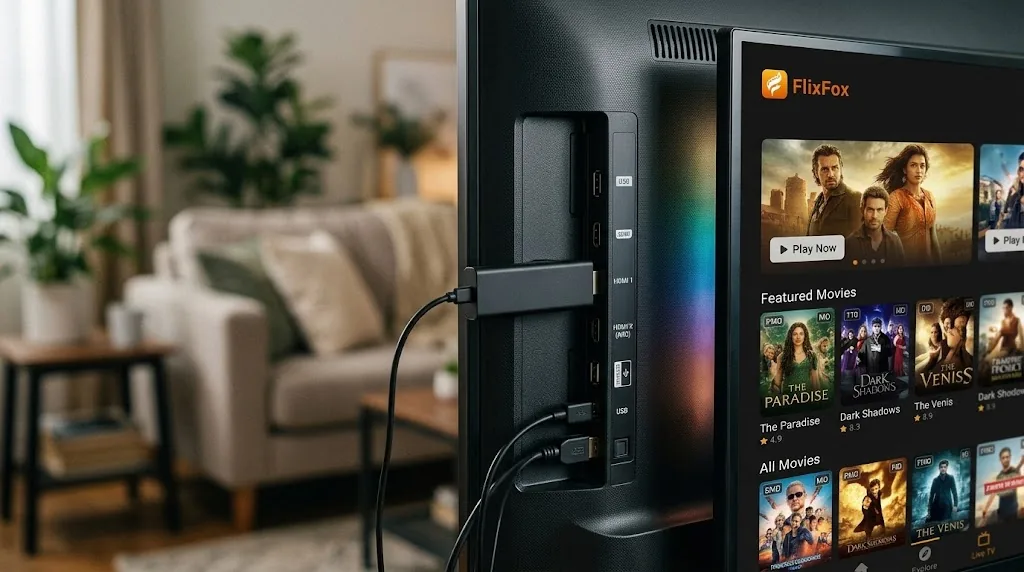
How to Install FlixFox on FireStick (Step-by-Step)
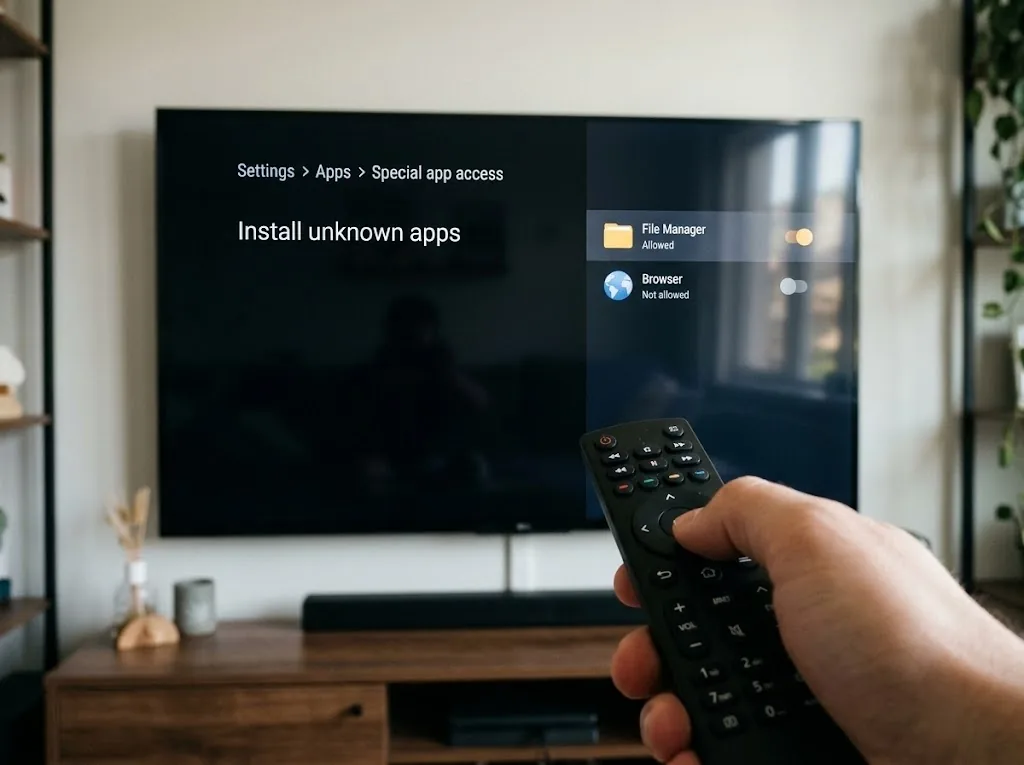
Step 1: Enable Apps From Unknown Sources
FlixFox is not on the Amazon Appstore, so you need to allow your Fire TV Stick to install apps from outside it. This is a standard, safe setting.
- From your Fire TV home screen, go to Settings.
- Select My Fire TV.
- Open Developer Options. If you don't see it, go to About, highlight your Fire TV Stick name and press the Select button 7 times to unlock it.
- Turn on Install Unknown Apps for Downloader, or Apps from Unknown Sources on older models.
Step 2: Install the Downloader App
Downloader lets your Fire TV Stick download APK files directly using a code or URL.
- Press the Home button on your remote.
- Go to the search bar (Find) and type Downloader.
- Select the app with the orange icon (by AFTVnews) and press Download.
- Open Downloader and allow any permissions it asks for on first launch.
Step 3: Download and Install the FlixFox APK
- Open the Downloader app.
- Select the Home tab on the left.
- In the URL box, enter {{DOWNLOADER_CODE}} and press Go.
- Wait for the 34.5 MB FlixFox APK to download. The installer opens automatically.
- Select Install and wait a few seconds.
- Select Done (not Open), then choose Delete to remove the APK file and free up storage.
Step 4: Open FlixFox and Start Watching
- From the Fire TV home screen, go to Your Apps & Channels (the three-square icon).
- Scroll to the end of the list to find FlixFox.
- Highlight it, press the Menu button on your remote and choose Move to Front.
- Open FlixFox and start watching.
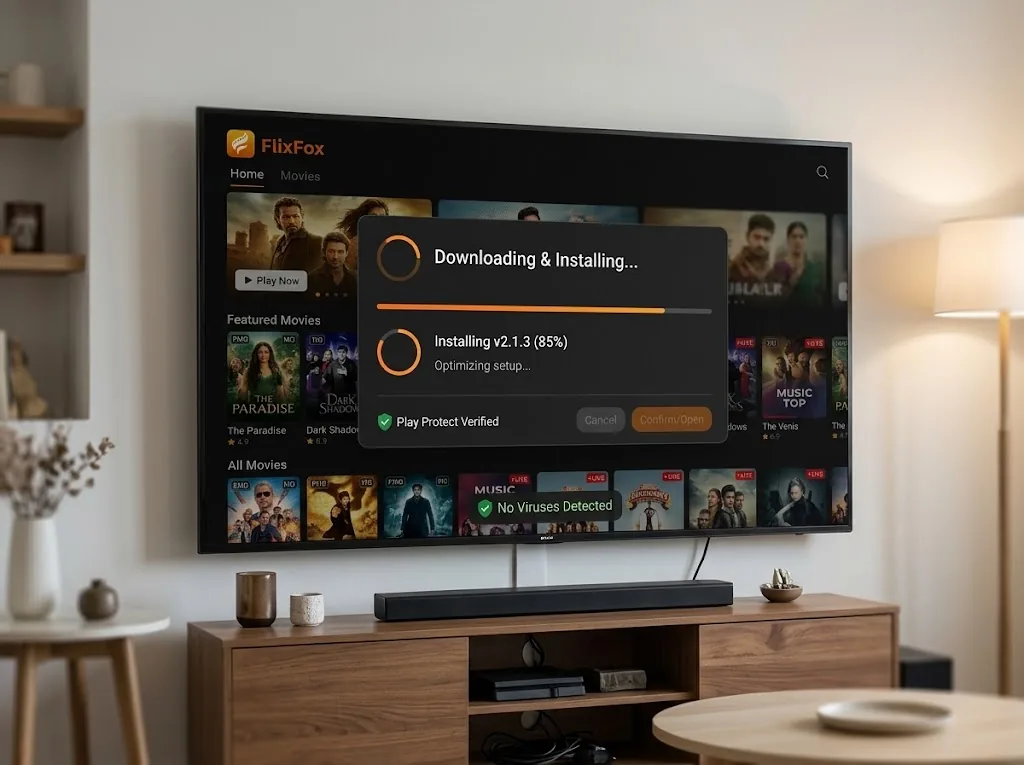
Setting Up FlixFox for the Best Experience
01
How to Turn On Skip Intro
- Open FlixFox and go to Settings.
- Find the playback options.
- Turn on Skip Intro.
- When an episode starts, press Select on your remote to jump past the opening titles.
02
How to Set Up Parental Controls
- Open FlixFox and go to Settings.
- Select Parental Controls.
- Turn it on and set a PIN that only adults know.
- Content that is not suitable for children will now need the PIN to play.
03
How to Switch to Hindi Interface
- Open FlixFox and go to Settings.
- Select Language.
- Choose Hindi.
- All menus and buttons will now appear in Hindi. Switch back to English the same way anytime.
FlixFox Firestick Features Overview
Value
Not required
None
Movies, web series, anime, live TV, cricket
1,00,000+ titles
English, Hindi, Tamil, Telugu
English and Hindi
Yes
Yes
Yes
All Fire TV Stick and Fire TV models
Feature
Registration
Ads
Content
Library
Content Languages
Interface
Offline Downloads
Skip Intro
Parental Controls
Compatible Devices
Value
Not required
None
Movies, web series, anime, live TV, cricket
1,00,000+ titles
English, Hindi, Tamil, Telugu
English and Hindi
Yes
Yes
Yes
All Fire TV Stick and Fire TV models
Why Use FlixFox on FireStick?
One app for everything: movies, web series, anime, live TV and cricket all sit in one place, so you do not need to jump between apps with your remote.
Light on storage: Fire TV Sticks have limited storage. At just 34.5 MB, FlixFox leaves plenty of room for your other apps.
No sign-up, no ads: install it and start watching. There is no email, no OTP and no ad breaks in the middle of your movie.
What You Need Before You Start
Before installing FlixFox on your Fire TV Stick, make sure you have:
- An Amazon Fire TV Stick (Lite, Standard, 4K or 4K Max) or Fire TV Cube
- A stable internet connection
- The Downloader app (free from the Amazon Appstore)
- Developer Options turned on (covered in Step 1 above)
How to Update FlixFox on FireStick
Keeping FlixFox updated gives you the latest fixes and smoother playback.
- Open the Downloader app.
- Enter {{DOWNLOADER_CODE}} again and press Go to download the latest version.
- Select Install. The new version installs over the old one.
- Your settings and downloads stay as they are.
FlixFox FireStick: Troubleshooting Guide
FlixFox Is Buffering or Loading Slowly
Fire TV Sticks sit behind the TV, where Wi-Fi signals are often weak.
- Make sure your internet speed is at least 5 Mbps for smooth HD streaming.
- Use the HDMI extender that came in the box to move the stick away from the TV.
- Restart your Fire TV Stick and your router.
FlixFox Won't Install on FireStick
- Check that Install Unknown Apps is turned on for Downloader in Developer Options.
- Delete the downloaded file and download it again, as the file may be incomplete.
- Check free storage in Settings > My Fire TV > About > Storage, and uninstall apps you no longer use.
FlixFox Keeps Crashing or Freezing
- Go to Settings > Applications > Manage Installed Applications > FlixFox.
- Select Force Stop, then Clear Cache.
- Open the app again. If the problem continues, uninstall it and install the latest version.
FlixFox Shows a Black Screen
- Press Back and play the title again.
- Restart your Fire TV Stick by holding the Select and Play/Pause buttons together for 5 seconds.
A Movie or Show Is Not Showing Up
- Use the search option inside FlixFox to look up the title directly.
- Check the spelling, or try searching with the title in Hindi or English.
Frequently Asked Questions (FAQs)
FlixFox works on all current Fire TV devices, including Fire TV Stick Lite, Fire TV Stick, Fire TV Stick 4K, Fire TV Stick 4K Max and Fire TV Cube.
FlixFox is distributed as an APK file and is not listed on the Amazon Appstore. That is why you install it using the Downloader app, as shown in the steps above.
Enter {{DOWNLOADER_CODE}} in the URL box of the Downloader app to download the latest FlixFox APK directly to your Fire TV Stick.
Yes. Downloader by AFTVnews is free on the Amazon Appstore. You only need it to download the FlixFox APK, and you can keep it for future updates.
Yes. Live TV channels and cricket streams are available on Fire TV Stick, so you can watch the match on your big screen.
Yes, but keep an eye on storage. Fire TV Sticks have limited space, so delete downloaded titles after watching to keep the device running smoothly.
Yes. Once FlixFox is installed, the APK file is not needed. Choose Delete after installation to free up storage on your Fire TV Stick.
Restart your Fire TV Stick first. If the app still does not open, check that Install Unknown Apps is still on for Downloader, then install the latest FlixFox version over the old one.
Go to Settings > Applications > Manage Installed Applications > FlixFox and select Uninstall.